
Printing Text
This guide shows how to print dynamic text into your PDF using n8n.
Step 1 — Prepare your template
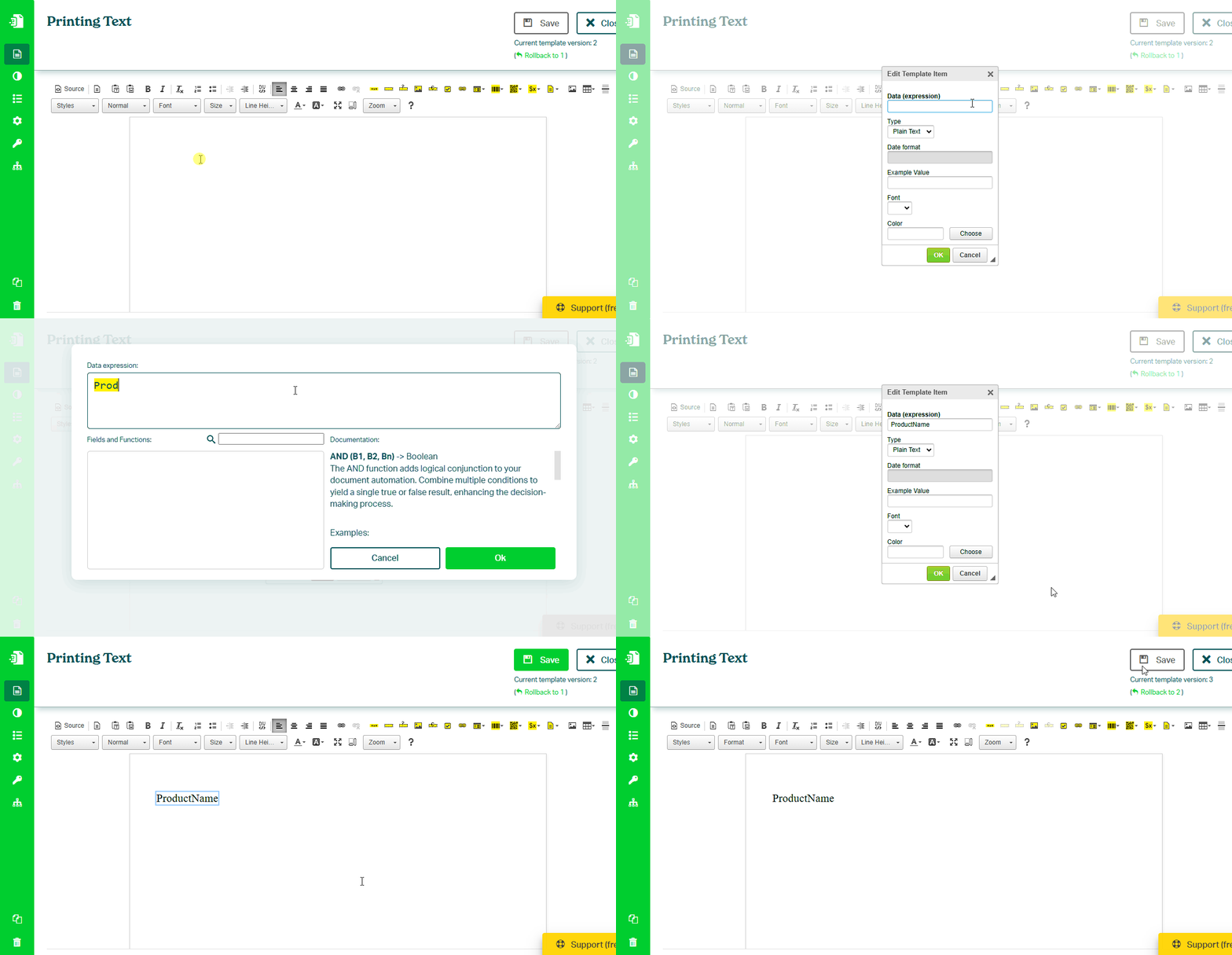
In the Eledo editor:
- Click the **Text Box (TXT)** component in the toolbar
- Place it into your document
- In Data (expression), enter a field name (for example
ProductName) - Confirm and save the template
Tip Learn more about Text Box: /docs/product/template-editor/components/text-box.mdx
Step 2 — Use the template in n8n
In your n8n workflow:
- Add the Eledo PDF node
- Select your credentials
- Choose your template
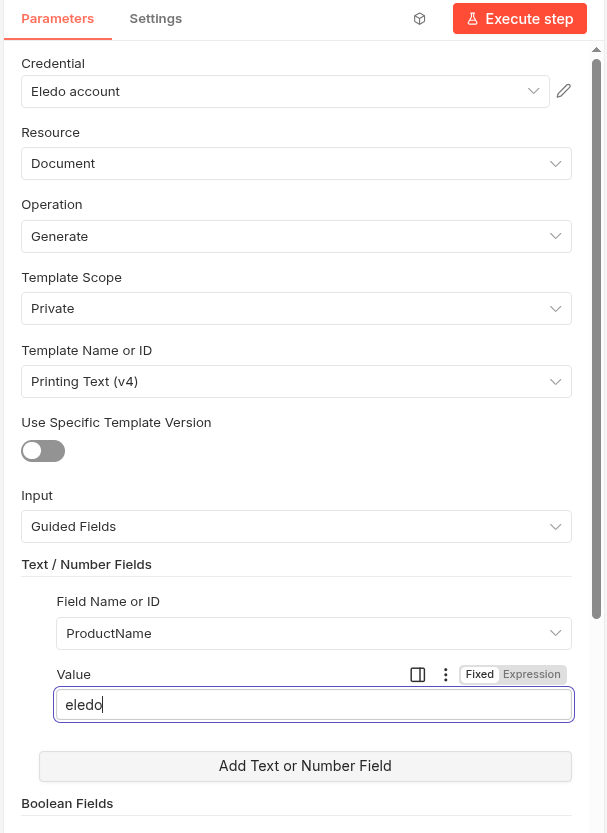
- Make sure Input is set to **Guided Fields**
Step 3 — Add and fill the field
In the Eledo node:
- Click Add Text or Number Field
- Select the field (for example
ProductName) - Enter a value into the Value field
Step 4 — (Optional) Format the output
You can control how text appears directly in the template using expressions.
Examples:
"Product: " + ProductName
NUM(Price, 0, 2) + " €"
Tip Learn how to format values: /docs/product/template-editor/guides/printing-text.mdx
Related guides
- Printing numbers → Printing Number
- Printing dates → Printing Date
Result
When the workflow runs:
- the value is passed to Eledo
- Eledo fills the Text Box
- the final document is generated
Next steps
- Build a full workflow → Generate Your First PDF
Was this article helpful?
Yes
No

